
Thank you for your support and for being a valued member of ZonixTrading.
This guide will walk you through how to activate your indicators using our License Manager system. Whether this is your first installation or you’re activating on a new computer, the process is quick and fully self-managed – everything is controlled directly from your ZonixTrading account.
I. Activate your indicators in 7 easy steps
1. Download your files
- Go to your Download Zone → https://zonixtrading.com/my-account/downloads
- Download the ninZaResources file (important) along with your purchased indicators.

2. Import the files into NinjaTrader 8
- Open NinjaTrader 8 → Tools → Import → NinjaScript Add-on…
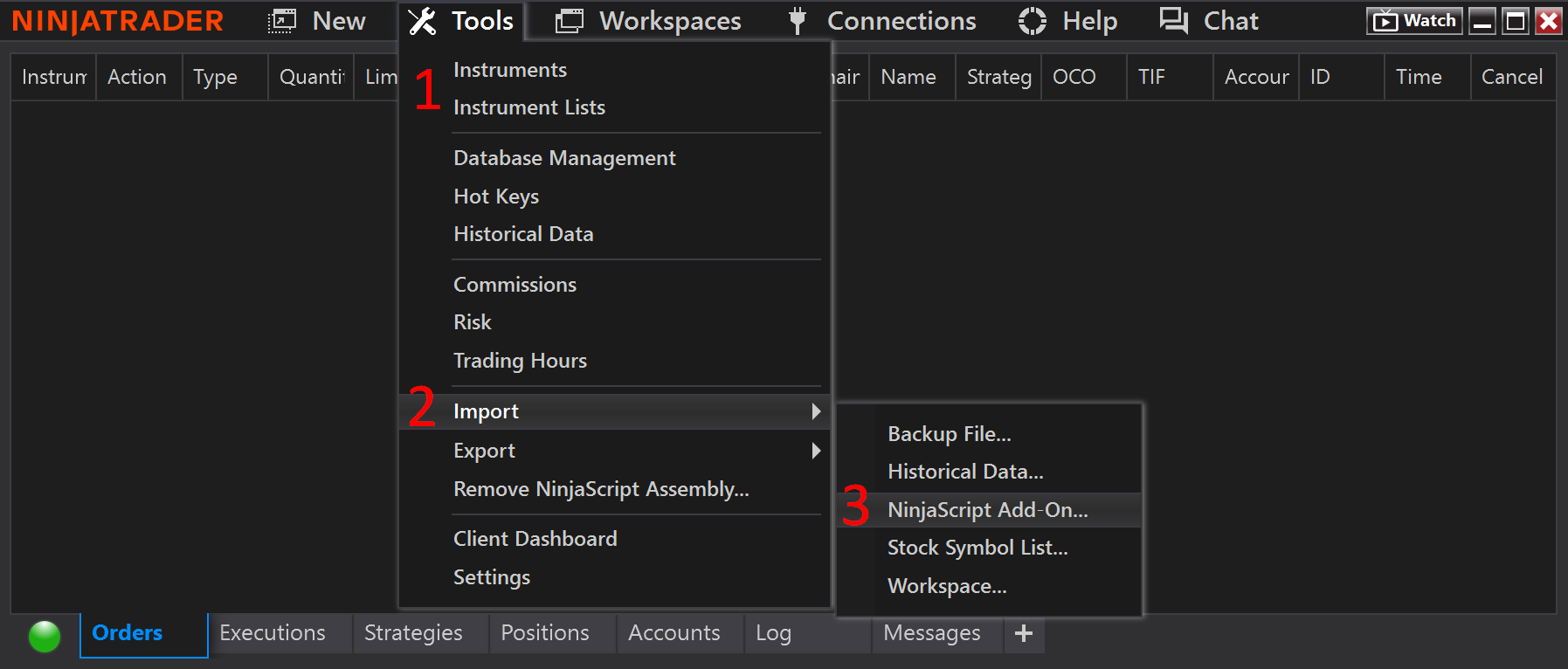
- Import ninZaResources first, then import your indicator files.

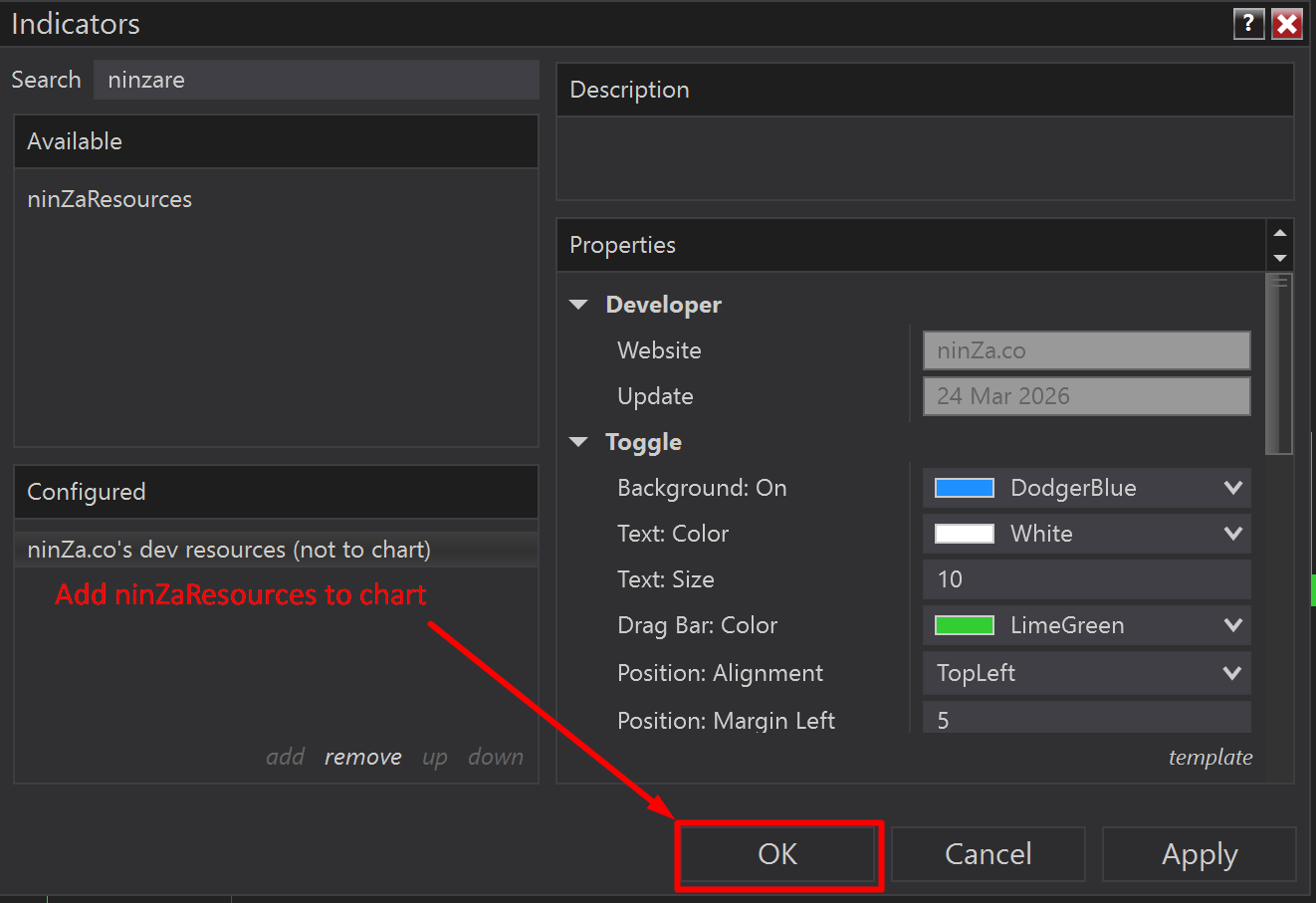
3. Add ninZaResources to a chart to get your ninZaID
- Open any chart in NinjaTrader 8 → Add ninZaResources from the Indicators list → Click OK.
4. Copy your ninZaID
- On the chart, click the ninZaID button at the top-left → Copy your ninZaID.

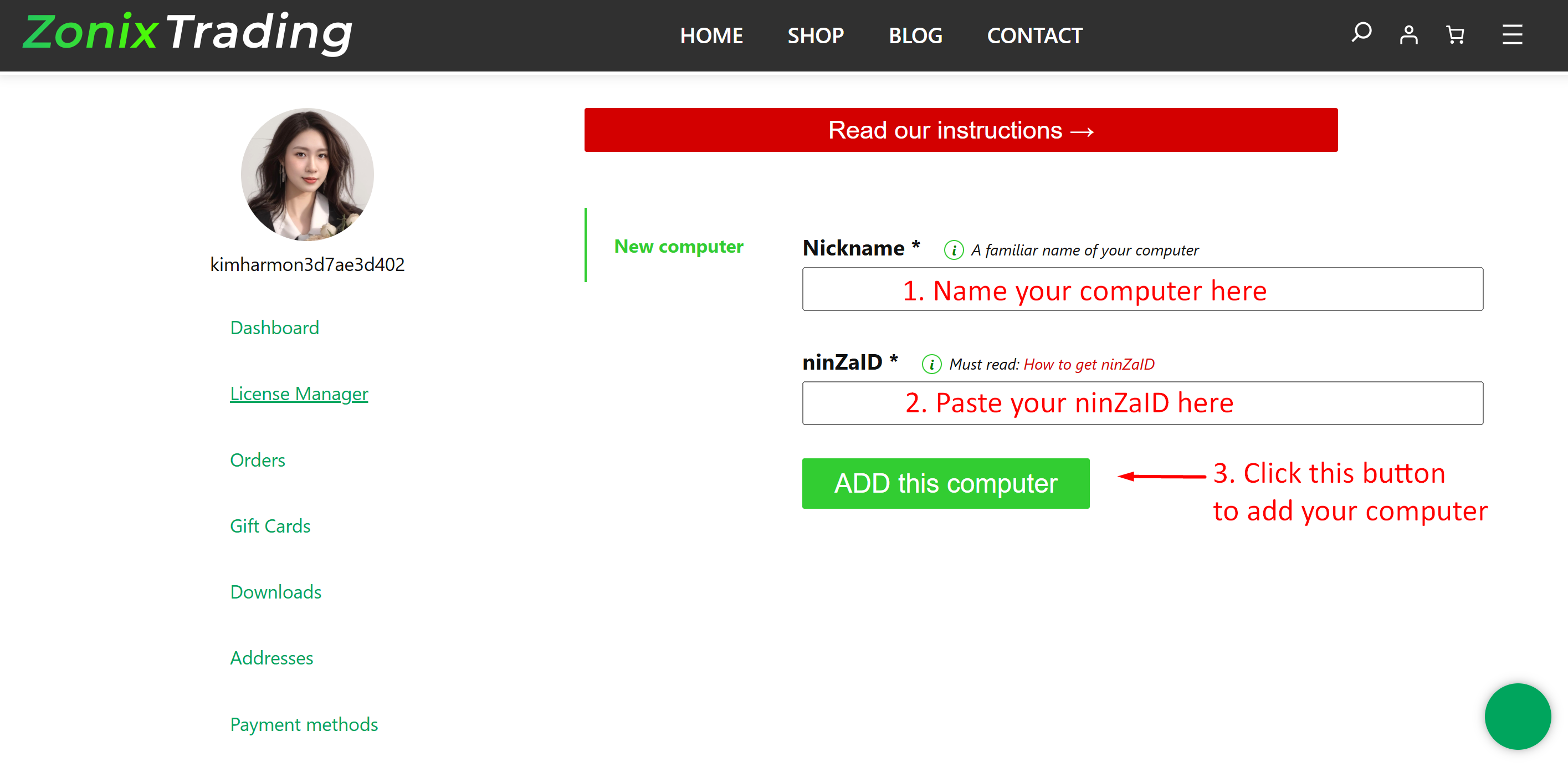
5. Register your computer
- Go to your License Manager → https://zonixtrading.com/my-account/license-manager
- Enter your Computer Name → Paste your ninZaID → Click “Add this computer”.
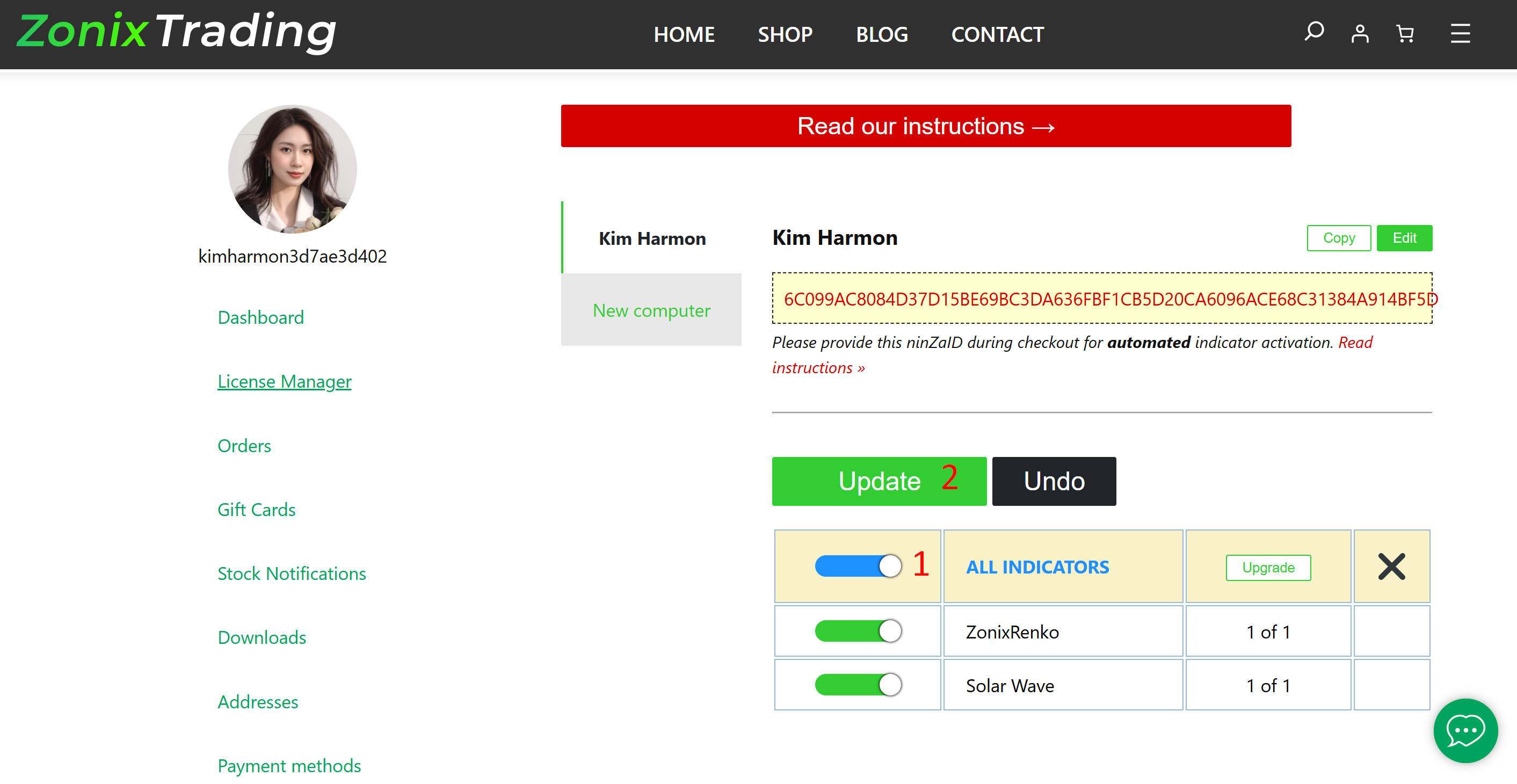
6. Activate your indicators
- Click the On/Off button, then click Update (as shown below) to activate your indicators.
7. Reload your chart
After activation, return to NinjaTrader 8 and add your indicators to the chart.
Your indicators should now be active and ready to use.
II. Migrate your indicators to another computer
If you have a new computer and want to migrate your indicators to it, you’ll need to update the new device’s ninZaID in your License Manager. Please follow the steps below:
Step 1-4: Follow the same steps as in Section 1.
Step 5: Edit and update the ninZaID for your new computer
- Go to your License Manager → https://zonixtrading.com/my-account/license-manager
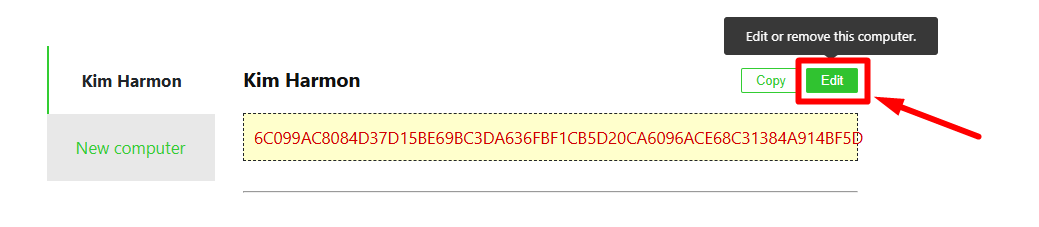
- Click “Edit” on your current license.
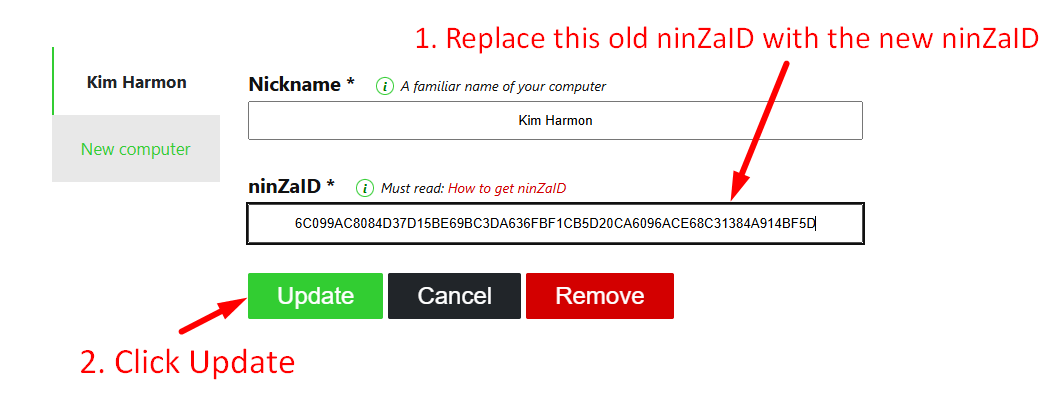
- Replace the old ninZaID with the new one that you just retrieved in Step 4.
- Click Update. It will automatically update and activate your indicators on your new device.
III. Using indicators on multiple computers
If you have 10 indicators and want to use 5 on Computer A and 5 on Computer B, you can easily do that too.
If you want to use your indicators on multiple devices at once – for example, on both your PC and laptop or for your training courses – you’ll need to upgrade your license to use them simultaneously across devices. Please contact our support team via support@zonixtrading.com for assistance with license upgrades and options.
Need Help?
If you need any assistance, feel free to contact us: support@zonixtrading.com